

Discussion Board
Pawtograder’s discussion board feature allows students and staff to discuss course content and ask questions. It is not intended to be a replacement for office hours, although there is an option to format the post as a question that needs an answer (as opposed to a “note” that does not need an answer).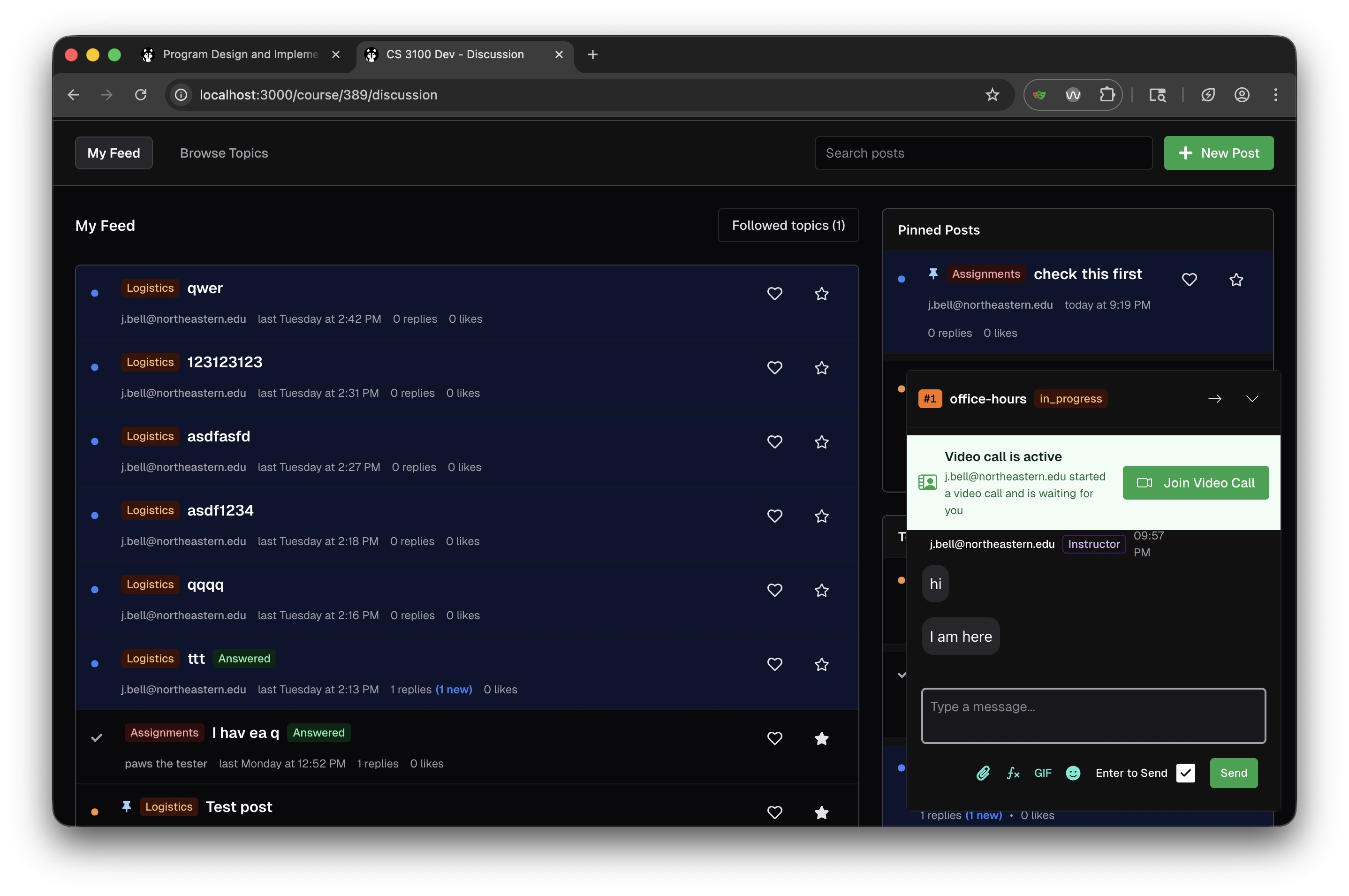
Key Features
Feed and Topic Organization
The discussion board uses a feed-based layout with two main views:- My Feed: Shows all posts relevant to you, including posts from topics you follow
- Browse Topics: Allows you to explore posts organized by topic categories
Pinned Posts
Instructors can pin important posts that appear in a dedicated “Pinned Posts” section in the sidebar. This is useful for:- Highlighting frequently asked questions
- Surfacing important announcements
- Drawing attention to helpful resources
Karma and Leaderboard
The discussion board includes an optional karma system to encourage positive participation. Students earn karma points through helpful contributions such as:- Creating posts that receive likes
- Providing answers that are marked as helpful
- Engaging constructively with the community
Error Pins
Error pins automatically surface relevant discussion posts to students when they encounter errors in their assignment submissions. This feature:- Matches submission errors to related discussion posts
- Displays suggested posts directly on the student’s submission page
- Reduces repetitive questions by connecting students to existing solutions
- Highlights instructor-pinned posts that address common issues
Post Visibility and Identity
Posts can be shared with the entire class, or with course staff only. Each user in a class has a pseudonym, and can choose to use their real name or their pseudonym. Staff can always see the real name of a user. Students can edit their own posts, and staff can edit any post.Post Metadata
Each post displays:- Topic tag: Color-coded category (e.g., “Logistics”, “Assignments”)
- Author email: The poster’s identity
- Timestamp: When the post was created
- Reply count: Number of responses, with indicators for new replies
- Like count: Community engagement metric
- Answered badge: Indicates whether a question has been resolved
Active Help Request Integration
When a student has an active help request in office hours, a widget appears in the discussion board sidebar showing:- The current status of their help request (e.g., “in_progress”)
- Video call notifications when staff starts a video chat
- A “Join Video Call” button for quick access to help sessions